How to Compress Images for Email: The Fastest Free Method
On this pageexpand_more
We've all been there. You try to attach a photo to an email, and you get that frustrating bounce-back: "Attachment size exceeds the allowable limit."
Whether you're sending product photos to a client, vacation pictures to family, or design mockups to your team — oversized images are a universal email headache. The good news? You can fix it in under 30 seconds, completely free, without installing anything.
Why Email Attachments Have Size Limits
Every major email provider enforces attachment size limits:
| Email Provider | Maximum Attachment Size |
|---|---|
| Gmail | 25 MB |
| Outlook / Hotmail | 20 MB |
| Yahoo Mail | 25 MB |
| Apple Mail (iCloud) | 20 MB |
| ProtonMail | 25 MB |
These limits apply to the total size of all attachments combined — not per file. So if you're sending 5 photos at 5 MB each, you're already at 25 MB and hitting the Gmail ceiling.
Modern smartphone cameras make this problem worse every year. A single photo from an iPhone 15 or Samsung Galaxy S24 can easily be 5–12 MB in HEIC/JPEG format. Professional DSLR photos? Often 15–30 MB each.
The 3-Step Solution: Compress Images Instantly
Here's how to compress your images for email in under 30 seconds using PixelSwift's free compressor — no sign-up, no software installation, no file uploads to any server.
Step 1: Open the Compressor
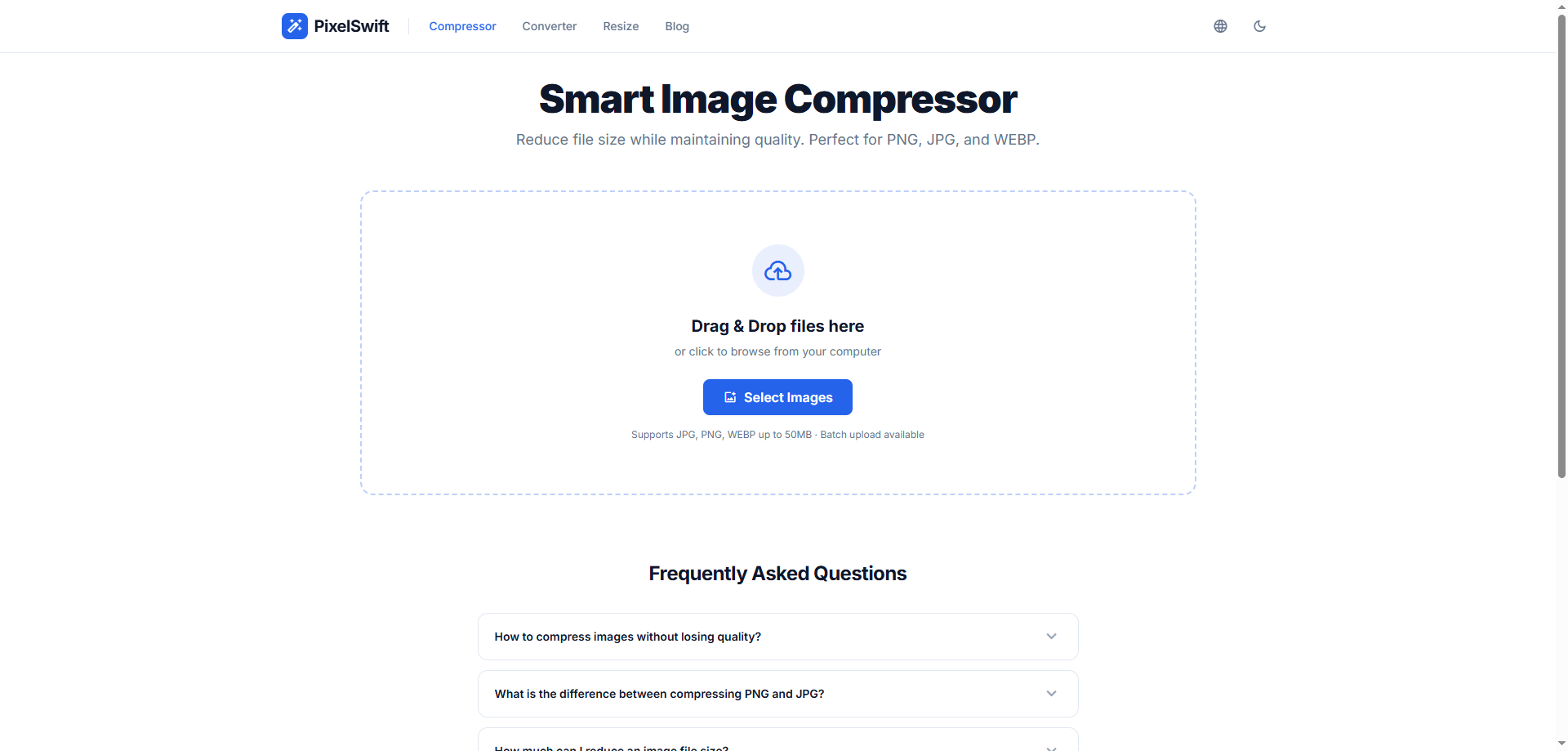
Navigate to PixelSwift's Image Compressor in any modern browser. You'll see a clean drag-and-drop zone ready for your files.
Step 2: Drop Your Images and Adjust Quality
Drag your image file directly into the browser window — or click "Select Images" to browse. PixelSwift immediately begins compressing.
You'll see a real-time before/after comparison with a slider, so you can verify the quality is acceptable before downloading. The right panel shows compression settings:
- Quality slider: Adjust from 1% to 100%. For email, 70–80% is the sweet spot — significant size reduction with virtually no visible quality loss.
- Compression Level presets: Choose "Recommended" for a balanced result, or "Maximum" for the smallest possible file size.
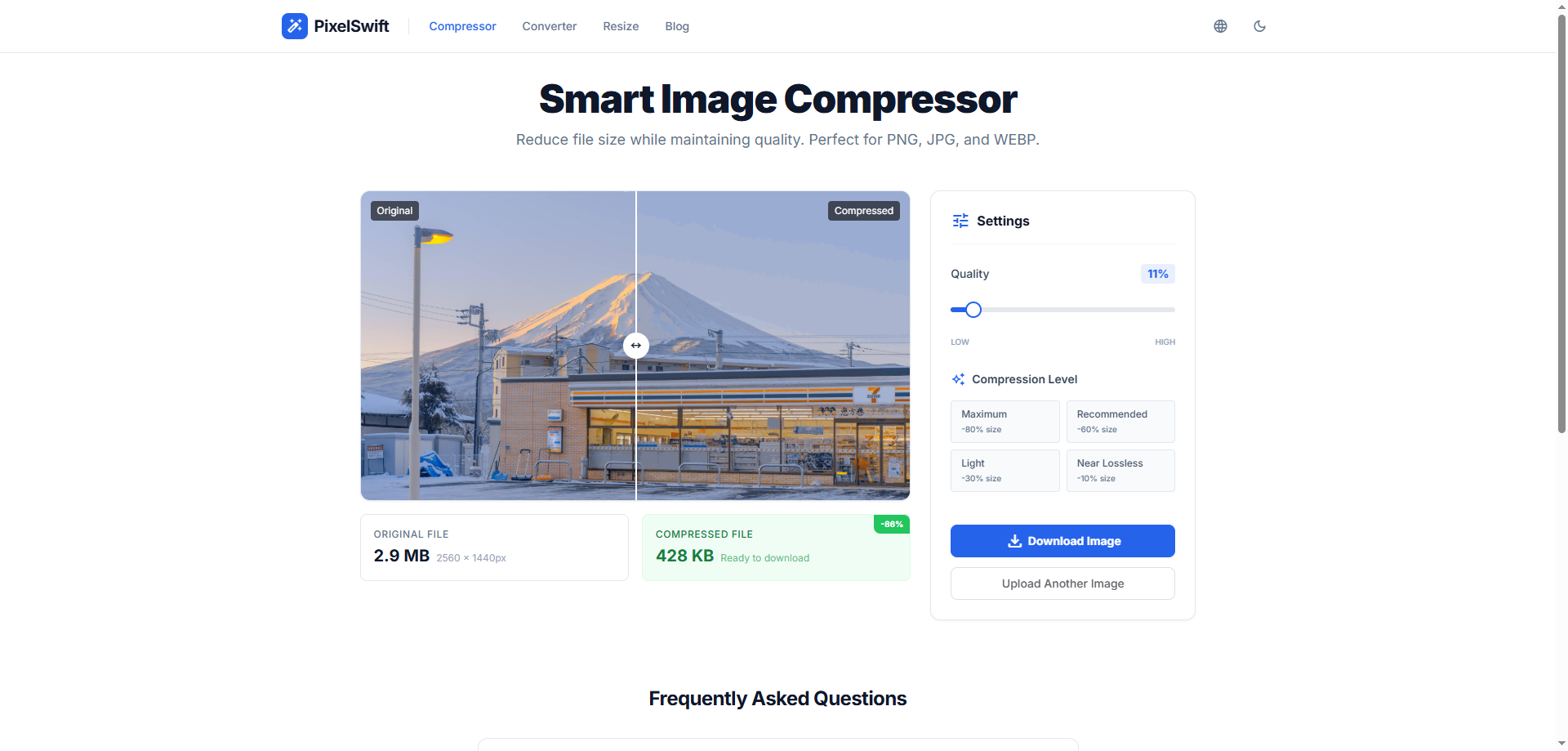
In the example above, a 2.9 MB photo was compressed to just 428 KB — an 86% reduction — while maintaining excellent visual quality. That's small enough for any email provider.
Step 3: Download and Attach
Once you're satisfied with the result, click the "Download Image" button. The compressed file saves directly to your computer, ready to attach to your email.
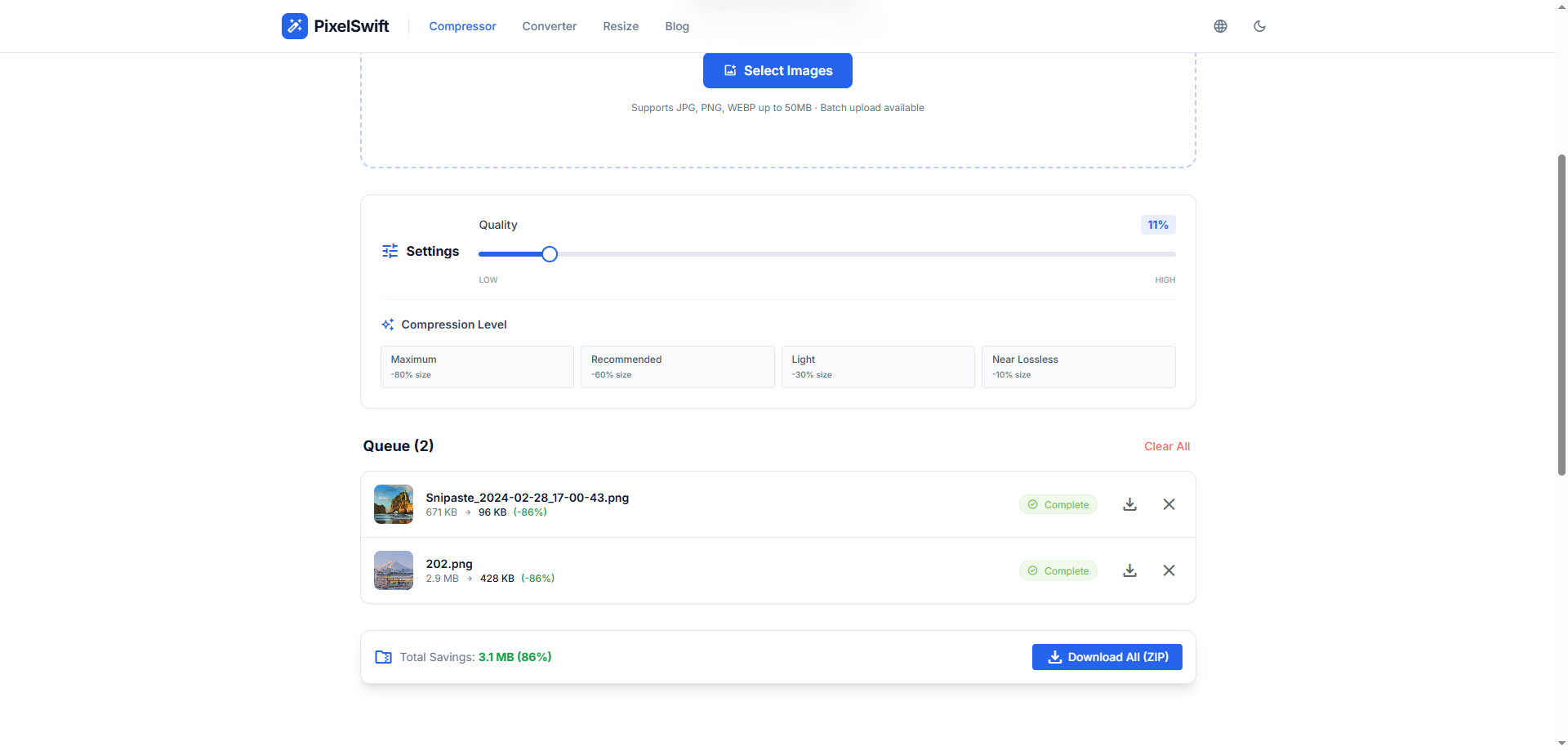
Compressing multiple photos? PixelSwift handles batch processing. Drop several images at once, and download them all as a ZIP file with one click.
Why Not Just Use a Cloud Link?
You might be thinking: "Why not just upload to Google Drive and share a link?"
That works sometimes, but there are real drawbacks:
- Recipients may not have access — shared links require permissions, and corporate firewalls often block cloud storage links.
- Links expire — Google Drive, Dropbox, and OneDrive links can be revoked or expire.
- Not professional — in business communication, an attached file feels more polished than a "click this link to download."
- Offline access — attachments are available offline; links are not.
Image compression gives you the best of both worlds: small files that attach directly to the email, no links needed.
Choosing the Right Format for Email
Not all image formats are equal for email attachments. Here's a quick guide:
| Format | Best For | Typical Compression | Email Compatibility |
|---|---|---|---|
| JPEG/JPG | Photos, screenshots with gradients | 60–85% reduction | ✅ Universal |
| PNG | Screenshots with text, logos | 30–50% reduction | ✅ Universal |
| WebP | Maximum compression | 70–90% reduction | ⚠️ Some older email clients may not preview |
Our recommendation for email: Stick with JPEG for photos and PNG for screenshots. These formats are supported by every email client on every device. If your recipient is tech-savvy and you need maximum compression, WebP is an option — but JPEG at 75% quality is the safest bet.
Need to convert between formats? PixelSwift's Image Converter handles JPG ↔ PNG ↔ WebP conversions instantly.
Batch Processing: When You Have Multiple Photos
Sending a batch of photos — like event photos, product images, or a set of design mockups — is where compression really shines.
Without compression, 10 photos from a modern camera might total 50–80 MB. That's 2–4x over the email limit. With PixelSwift's batch compression:
| Scenario | Before | After | Savings |
|---|---|---|---|
| 10 smartphone photos | 45 MB | 7 MB | 84% |
| 5 DSLR product shots | 75 MB | 12 MB | 84% |
| 20 screenshots | 30 MB | 6 MB | 80% |
All of these fit comfortably within email limits after compression.
Pro tip: If you also need to resize images (e.g., your recipient doesn't need 4K resolution for a quick review), use PixelSwift's Image Resizer first. Resizing a 4000×3000 photo down to 1920×1440 before compressing can cut the file size by an additional 50%.
Privacy: Your Photos Stay on Your Device
Here's something most people don't think about: traditional online compressors upload your images to their servers for processing. Your vacation photos, medical documents, ID scans, and business files all pass through someone else's infrastructure.
PixelSwift is different. Its compression engine runs entirely inside your browser. Your files never leave your device — not even temporarily.
This matters when you're compressing:
- 📄 Contracts and legal documents with embedded images
- 🏥 Medical records or health-related photos
- 🏢 Confidential business materials
- 🪪 ID documents (passport, driver's license scans)
- 👶 Personal family photos you'd rather keep private
No server means no data breach risk. Period.
Quick Reference: Email Compression Cheat Sheet
| What You're Sending | Recommended Quality | Expected Size |
|---|---|---|
| Casual photos to friends | 60–70% | ~200–400 KB each |
| Product photos to clients | 75–85% | ~300–600 KB each |
| Design mockups for review | 80–90% | ~400–800 KB each |
| Screenshots (with text) | PNG, Lossless | ~100–300 KB each |
| High-quality portfolio pieces | 90–95% | ~500 KB–1 MB each |
Common Questions
Will compression make my photos look blurry?
At 70–80% quality, the difference is virtually invisible to the human eye. PixelSwift uses MozJPEG — the same compression engine used by Facebook and Instagram — which is specifically optimized for perceptual quality.
Can I compress photos on my phone?
Yes. PixelSwift works in any modern mobile browser (Chrome, Safari, Firefox). Just open the site, tap "Select Images," choose your photos, and download the compressed versions.
Is there a file size or quantity limit?
PixelSwift supports files up to 50 MB each and batch processing of up to 20 images at once. There's no daily limit — compress as many images as you need, completely free.
What if I need to compress a PDF with images?
PixelSwift is designed for image files (JPG, PNG, WebP). For compressing images embedded in PDFs, you'd need a dedicated PDF compression tool.
Stop Fighting Email Limits
Life's too short to wrestle with email attachment errors. The next time you need to send photos via email:
- Open PixelSwift's Compressor
- Drop your images
- Download and attach
No account. No installation. No upload. Just smaller files, instantly.
Want faster images?
Free online image compression — no signup, no upload limits.
Compress Now